
By qlk.to · Updated
Product guidance with labelled examples. Figures in worked examples are illustrative.
Find the exact address encoded in the QR
Use a scanner that shows the encoded address before opening it. Keep that address separate from the final page you reach after any redirect. The editable part, if there is one, is controlled by whoever manages the encoded address.
For example, a code containing https://links.example/autumn can keep that address while its manager changes the final offer. The example domain is illustrative. A code containing a final page on somebody else’s website gives you no control over that page.
| What the code contains | What you can change |
|---|---|
| An editable short link you manage | Change its saved destination |
| An address on a website you control | Update the page or configure its redirect |
| An address controlled by another organisation | Ask its owner or replace the printed code |
| A short link whose account you cannot access | Recover access before attempting an update |
Update an existing qlk.to placement link
Keep the original published link. Creating a different link produces a different address, so it does not update the code already on paper.
- Open the existing placement link in Campaigns & links.
- Check that its published URL matches the address encoded in the printed QR.
- Enter the new HTTPS destination. Open that destination separately and check its content.
- Save the draft, then publish the change. Saving alone does not make the new destination live.
- Allow a short time for the published change to reach visitors, then scan the original printed code again.
Check the visitor’s complete route
Test the actual print, not a newly generated QR image. Confirm that the browser reaches the intended final page, that any offer is still valid and that the route works on a phone as well as a desktop.
If you configured device choices or a schedule, check the default destination and each applicable rule. qlk.to schedules use UTC and the first applicable rule in your list wins. Device choices distinguish mobile, tablet and desktop; they do not distinguish iOS from Android or route by country.
Record when the destination changed
Keep an internal note of the old offer, new offer and publication time. The same link keeps its identity and statistics, so a report spanning the change contains activity from both offers. Use date ranges to separate the periods, and label your conclusions accordingly.
If you need simultaneous placement comparisons, create separate placement links before printing. A shared link cannot retrospectively tell you which poster or leaflet someone used.
Check the account and link status
An expired sample, paused link, retired address or account restriction can stop the route. The Free sample ends 30 days after signup unless the account upgrades; it is not a permanent hosting arrangement for printed material.
Keep your domain registration and required settings in place when using a custom domain. Use changing destinations to maintain an honest, relevant offer. Follow your messaging and advertising provider’s link requirements.
Explore the report yourself
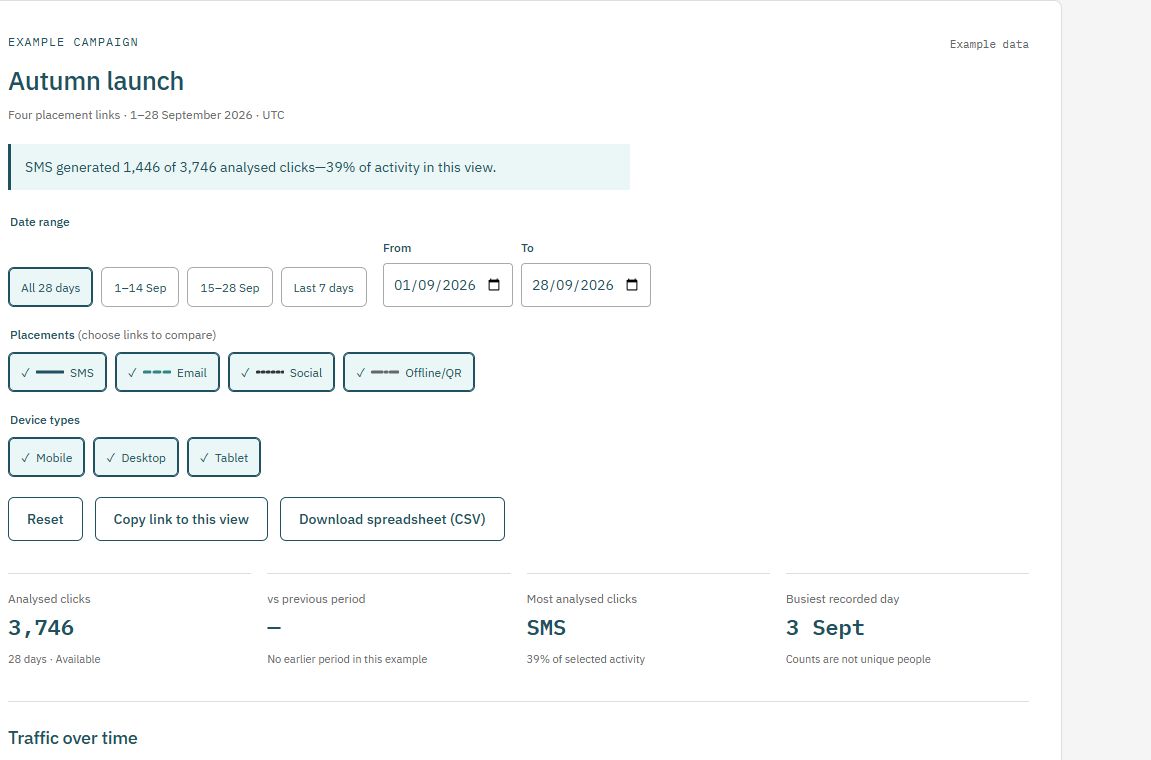
Use a consistent placement plan
Prepare destination labels in the UTM builder, then save the completed destination when creating your qlk.to link. Download the campaign-link plan (CSV) to record your published addresses and launch dates.
Check current plans and limits before a live send or print run. The Free sample’s links stop after 30 days from signup unless you upgrade.