
By qlk.to · Updated
Product guidance with labelled examples. Figures in worked examples are illustrative.
Start with the question you want to answer
Decide what a useful comparison would change. For a local launch, you might compare a shop-window poster with a leaflet handout. If both use the same QR URL, their activity is combined and the report cannot tell you which placement was responsible.
Use one campaign name and a placement name that identifies the physical item or location. Keep the final offer consistent while comparing placements. If the offers, dates and distribution differ, the totals describe those different conditions as well.
| Campaign | Placement | Link to create |
|---|---|---|
| autumn_launch | shop_window_poster | A separate published short link |
| autumn_launch | leaflet_handout | A second published short link |
| autumn_launch | counter_card | A third published short link |
Create the links before making the QR artwork
qlk.to measures the published link inside the QR code. Create the QR image using your preferred QR design tool. Keep a record of which published URL belongs to each print file.
- Create one campaign and add a placement link with an HTTPS destination.
- If you use destination-side analytics, add your campaign labels to the destination before saving it. The free UTM builder can prepare that URL.
- Publish the placement link and copy its published short URL.
- Encode that published short URL in your QR tool. Repeat with a different placement link for each item you want to compare.
Test the physical print before distribution
Open the destination directly, then scan a proof at its intended size and viewing distance. Check contrast, the clear border around the symbol and the final page on more than one device. A code that works enlarged on your monitor may behave differently on reflective packaging or a distant poster.
Keep internal testing separate from your live comparison. qlk.to can mark a separate link as test traffic. Marking a link as test applies to that link, so use a dedicated test copy rather than marking the public campaign link and forgetting to change it. Record when final checks on the live link were made.
Compare recorded openings with the same dates
Open Reports, select the campaign and choose a common UTC date range. Compare the placement links, then look at daily and device breakdowns. Check any reporting-delay or missing-data notice before interpreting a quiet period.
Here is a made-up review example: the window poster recorded 84 analysed clicks and the leaflet link recorded 126. The leaflet link received 42 more recorded openings. That alone does not prove better placement efficiency: you also need distribution, cost and destination-side outcomes. Repeat openings can count again, and some automation may remain after known-bot exclusions.
| Placement | Analysed clicks | Additional evidence needed |
|---|---|---|
| Window poster | 84 | Days displayed and estimated exposure |
| Leaflet handout | 126 | Leaflets distributed and distribution dates |
Keep the link working for the life of the print
An editable destination lets you update the offer behind a published link without changing the QR pattern. It works only while the encoded URL and the account are allowed to serve the destination. Pausing, retiring or restricting the link affects the printed code too.
The qlk.to Free sample lasts 30 days from signup. Its links stop at that deadline unless the account upgrades. For print that will stay in circulation, choose a suitable paid plan before the sample expires and retain control of any custom domain. An upgrade cannot recover reporting that was never collected or has expired.
Explore the report yourself
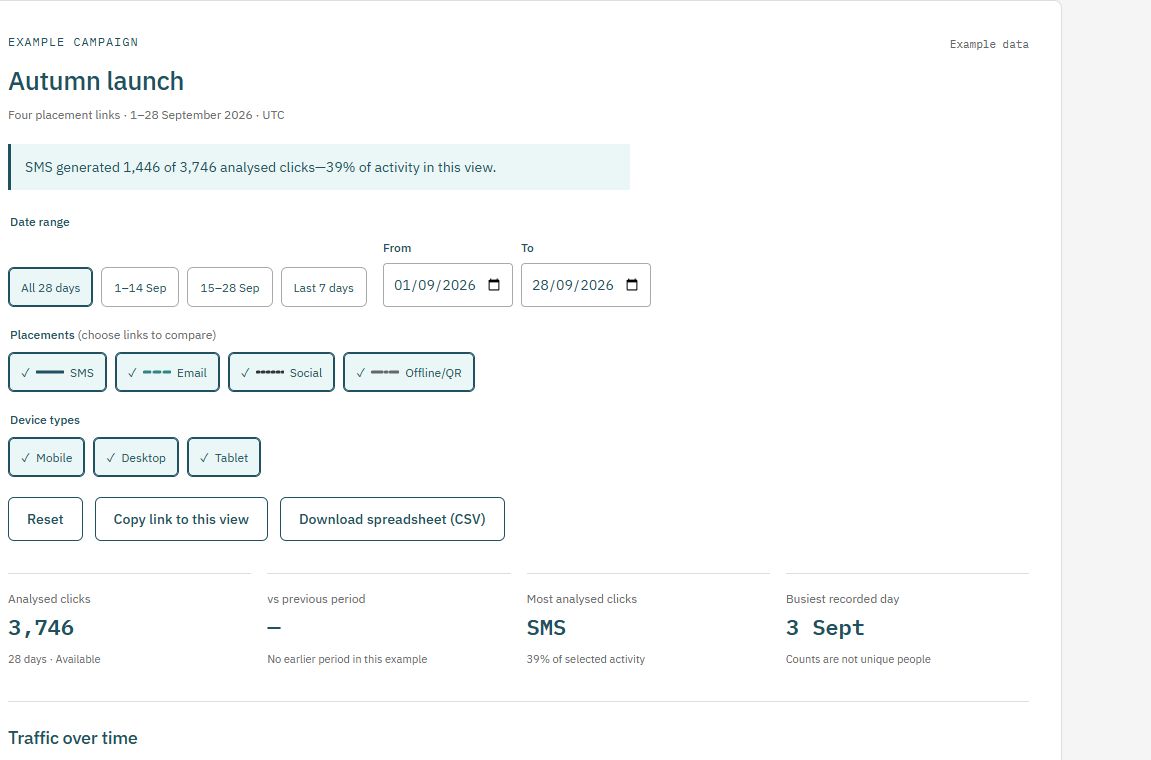
Use a consistent placement plan
Prepare destination labels in the UTM builder, then save the completed destination when creating your qlk.to link. Download the campaign-link plan (CSV) to record your published addresses and launch dates.
Check current plans and limits before a live send or print run. The Free sample’s links stop after 30 days from signup unless you upgrade.